
Lost Learning Initiative
At Tibshelf Community School, we believe in fostering a dynamic and supportive learning environment where every student can thrive. There is no replacement for students being in the classroom getting quality first teaching. However, if your child is off school with a genuine illness, then online work can be accessed to ensure that knowledge gaps are filled.
The concept of lost learning continues to worry us, as various factors such as COVID-19 and technological advancements have reshaped the way students engage with their education.
In response to these challenges, we have implemented an initiative to address any lost learning a student might have faced and support them in navigating an online area for them to work independently, and complete set tasks provided by their classroom teachers.
Our initiative strives to empower students to take ownership of their learning journey, utilising our online platforms which have been provided by their teachers to engage with curriculum materials. Through these online platforms, students have the flexibility to access resources from several different subjects to catch up on any work missed.
However, we acknowledge that independent online work presents its own set of challenges, including maintaining motivation, managing time, and seeking support when needed. Therefore, we have provided a guide on how to access each online area that your student might need to below.

Technical Support
Remote Learning Via PS / XBOX
Please see a guide on how to use gaming consoles for remote learning here.
Getting Microsoft Office at home
Download Microsoft Office
If you are a student or member of staff, you can install Microsoft Office 365 ProPlus for free on up to five personal devices.
You can download Microsoft Office 365 ProPlus to your own Windows computer, Mac, smartphone or tablet for free.
Download and install Microsoft Office on your personal device. Office 365 at home
Software included:
- Office 2019 for Windows:
- Word, Excel, PowerPoint, Publisher, Access, OneNote, Outlook, Skype for Business
- Office 2019 for Mac:
- Word, Excel, PowerPoint, OneNote, Outlook
- Office apps for iPhone, iPad, Android devices or Windows Phone 10:
- Word, Excel, PowerPoint, OneNote, Outlook
Download and install Office
To download Office, you will need:
-
Your school email address, for example, ‘abc123@tibshelf.derbyshire.sch.uk’
-
Your school password
From your home PC, go to portal.office.com.
- Enter your school email.
- Enter your school password and click ‘Sign in’.
- Click ‘Install Office’ on a Windows or Mac computer, or tap the individual icons if you are using a smartphone or tablet.
The software will install and ask you to log in. You must use your school email address and password again.
Saving your files
When you create files using Office, they will be saved on your personal hard drive. If you save them to your school OneDrive account instead, they can be accessed from any device where you are logged in.
Leaving School
When you leave school, your Office 365 licence will end. You will still be able to use Office in read-only mode until you buy your own licence.
Get help with Office 365 on your device
You can find help for Office on support.office.com.
Getting emails on your phone/device
Did you know you can check your e-mails on your phone?
Find out how by following the correct instructions for your device.
We recommend using the Microsoft Outlook app available from Google Play or the Apple Store. But other apps are available.
You will need
Regardless of which e-mail app you use, you will need the following information:
- Your e-mail address – This will be your school username, followed by: @tibshelf.derbyshire.sch.uk.
- Your network password – This will be the password you use to log onto the computers.
Depending on the app that you use, you may also be asked:
- What type of e-mail account you have:
- Staff have an “Exchange” account.
- Students have an “Office 365” account.
- Your network username:
- This is the username you use to log on to the computers.
- Some e-mail apps may require you to enter this as “Tibshelf\[Username]”
Accessing Google Classroom
To access Google classroom, you can follow the enclosed link.
Microsoft Teams
One tool your teachers use in order to stay in touch with each other, and yourselves, is Microsoft Teams.
Below are simple, step-by-step instructions to get logged onto Teams.
Before you start, you will need the following information:
- Your School Username (This is the username that you use to log onto the school computers)
- Your School Password (This is the password that you use to log onto the school computers)
- Your school e-mail address (This is [Your School Username]@tibshelf.derbyshire.sch.uk
On your Laptop, Tablet or Phone:
- Click Here to go to https://teams.microsoft.com/downloads
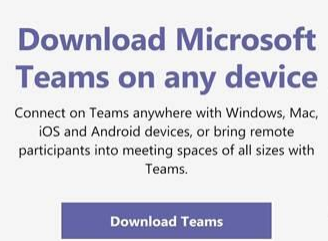
- Click the big purple “Download Teams” button

- Click the next big purple “Download Teams” button
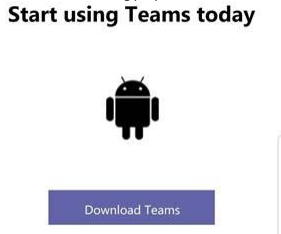
- Depending on your device – this will either download Microsoft Teams, or take you to the app store to download Microsoft Teams.
Download and install Teams
- Once downloaded, open teams and sign in with your school e-mail address.
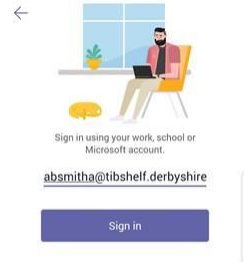
- You will be asked for your username and password.
- Enter these and press login.
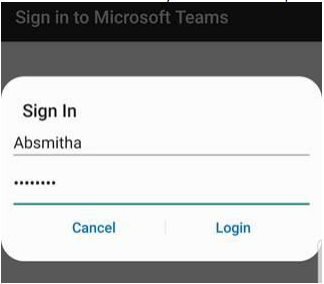
- If you’ve typed everything correctly (double check if needed), you will be logged in to Microsoft Teams!
Feeling stuck?
For some quick start guides, you can also check out Microsoft Teams End User Training for more information.
If you have any problems, please contact us at helpdesk@tibshelf.derbyshire.sch.uk
GCSE Pod
Click the enclosed link to reach the website information page on GCSE POD.
Seneca Learning
Click the enclosed link to reach the Seneca Learning - Guide.
Mathswatch
Click the enclosed link to reach the Mathswatch - Guide.